How to Add or Remove a Watermark in PDF Offline
Add, update, or delete watermarks in PDF offline on desktop. Protect documents securely without upload — PDF Agile.

Stamping documents as 'DRAFT', 'CONFIDENTIAL', or adding corporate brand logos is standard practice for legal and financial teams. If you are handling sensitive draft agreements, uploading them to online websites violates data safety protocols. This tutorial explains free operating system printing options and details how to securely add or remove a watermark in PDF offline using the Protect/Edit tab in PDF Agile.
Free General Methods to Resolve This Task
Watermarks protect drafts and brand your documents, but managing them on an existing flat PDF is harder than it looks: operating systems can add a watermark during printing, yet none can cleanly remove one. Knowing the free options — and their limits — helps you choose the right approach for confidential drafts.
Method 1: Free Virtual-Printer and Source-File Watermark Workarounds
Without a dedicated editor you can still stamp a watermark for free, though removal is essentially impossible with built-in tools:
- Microsoft Word Watermark + Export (Free): If you have the editable source, open it in Word, go to Design > Watermark, and choose a built-in stamp like "CONFIDENTIAL" or "DRAFT" (or add a custom picture/text watermark). Then export with File > Save As > PDF. This is the cleanest free way to add a watermark, but only if you still have the Word file.
- Printer Driver Watermark Tab (Free): Some manufacturer print drivers (HP, Canon, Xerox) include a Watermark or Overlay tab in their advanced printing properties. Open the PDF, choose Print, open the driver's properties, enable the watermark, and print to a new PDF. Availability depends entirely on your installed printer driver.
- Removal Is the Hard Part: Critically, neither Windows, macOS Preview, nor any browser can remove an existing watermark from a flat PDF — free online removers require uploading sensitive files to a server, which is a privacy risk for confidential drafts.
Because the free tools can add but never safely strip a watermark, a dedicated desktop editor is the only reliable two-way solution. The Watermark tool in PDF Agile lets you Add, Update, and Delete watermarks entirely offline.
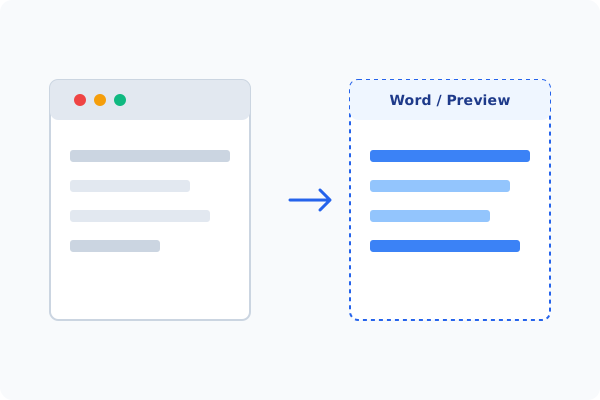
Method 2: How to Process Add/Remove Watermark 100% Offline via PDF Agile
If built-in tools are too manual, convert file layouts, or pose a privacy risk, running a lightweight desktop PDF editor like PDF Agile is the fastest and safest solution on Windows. Follow these steps:
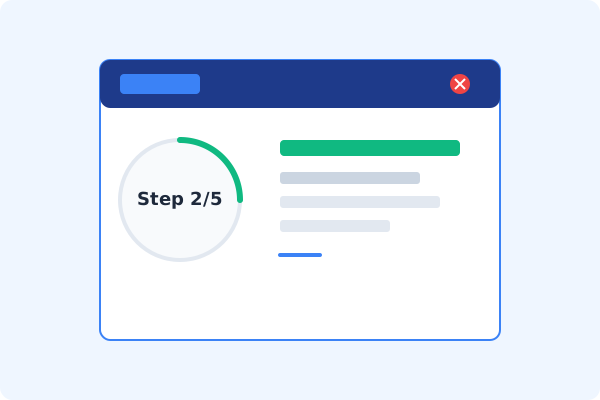
Open PDF Agile and Load Document
Start the desktop program and open your PDF. No internet connection is needed.
Go to the Protect or Edit Tab
Click the Protect (or Edit) tab on the Ribbon menu to view document security tools.
Click Watermark on the Ribbon
Select the Watermark button to open the watermark control menu.
Select Add, Update, or Delete
Choose Add to configure text/image stamps. Click Update to adjust current settings, or Delete to strip existing watermarks.
Apply and Save Locally
Confirm your layout in the preview thumbnail pane, click Apply, and press Ctrl+S to save locally.
Why Desktop Offline PDF Processing is Superior
For individuals and corporations, desktop-grade utilities protect your data boundaries while maintaining peak rendering speed:
Stamp highly customized text or image watermarks across specific page ranges
Strip out existing watermark layers from documents with one click
Secure, local CPU processing ensures complete confidentiality

Offline Local Software vs. Online & Subscription Editors
Before deciding how to handle your document, look at how different solutions stack up against your requirements:
| Features / Risks | Online PDF Editors | Adobe Acrobat | PDF Agile (Offline) |
|---|---|---|---|
| Data Privacy & Safety | ❌ Unsafe (File Uploaded to Cloud) | ⚠️ Average (Cloud Sync Enabled) | ✔ 100% Safe (Processed Locally) |
| File Size & Page Limits | ❌ Strict Limits (Often <20MB) | ✔ Unlimited Pages | ✔ Unlimited Pages (No Cap) |
| Subscription Fees | ⚠️ Free with Ads or Monthly Cap | ❌ Very Expensive ($20+/Month) | ✔ Affordable Lifetime Buyout |
| Offline Performance | ❌ Zero (Requires Internet) | ✔ Slow Setup & Cloud Checks | ✔ Instant Local CPU/GPU Loading |
Contextual PDF Guidelines
Managing complete workflows? Before stamping your draft, you may need to erase PDF content offline to clear old revision notes, or redact sensitive text in PDF offline to hide trade secrets.
Frequently Asked Questions & Workarounds
Can I strip a watermark from a locked PDF offline?
If the PDF is password-protected against editing, you must enter the permission password first. Once unlocked, the Delete Watermark tool will instantly strip the layer.
How do I make my watermark transparent?
When adding a watermark in PDF Agile, use the Opacity slider to set transparency (e.g., 20% or 30%) so the underlying text remains readable.
Does deleting a watermark delete original text?
No. Standard watermarks exist on a separate layer, allowing PDF Agile to target and delete only the watermark, leaving your original text intact.
Tired of Expensive Adobe Subscriptions?
Try PDF Agile. Get professional, desktop-grade PDF tools with a lifetime buyout license. 100% offline and secure.