How to Insert Page Numbers, Headers & Footers in PDF Offline
Add, update, or delete page numbers, headers, and footers in PDF offline on desktop. Secure local processing by PDF Agile.

When assembling multiple documents, page numbering and header/footer styling often get mixed up. Ensuring your pages are numbered consecutively is critical for professional briefs and reports. This guide reviews operating system print workarounds and shows how to easily insert page numbers, headers, and footers in PDF offline with the dedicated Insert tab in PDF Agile.
Free General Methods to Resolve This Task
Consistent page numbers, headers, and footers are what separate a polished report from a stack of loose pages — especially when you have merged several documents together. Operating systems can force basic headers through print settings, but they offer almost no control over format or placement, so it is worth weighing the free routes carefully.
Method 1: Free Browser and Word Header/Footer Workarounds
You cannot natively insert running page numbers into an existing flat PDF for free, but these workarounds get you partway:
- Web Browser Print Headers (Free): Open your PDF in Microsoft Edge or Google Chrome and press Ctrl+P. Set the destination to Save as PDF, expand More settings, and tick Headers and footers. The browser will inject the date, document title, page URL, and page numbers into the margins, then save a new PDF. The catch: you cannot choose the font, size, wording, or exact position — it is fixed by the browser.
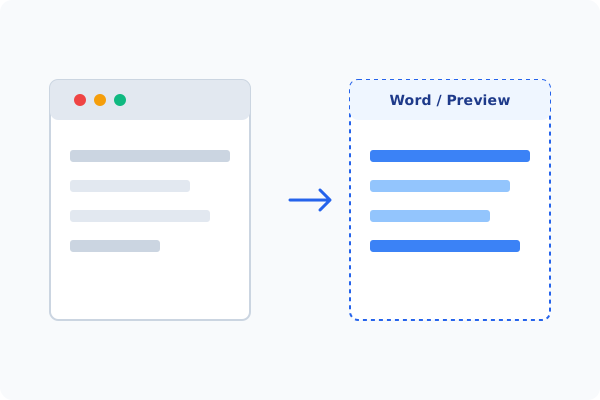
- Microsoft Word Insert > Page Number (Free): If you have the editable source, open it in Word, go to Insert > Page Number and Insert > Header / Footer for full control over format ("Page 1 of N"), starting number, and alignment, then export to PDF. This gives professional results but requires the original Word file.
- Google Docs Footers (Free): In a free Google Docs file, use Insert > Page numbers and the header/footer area, then download as PDF. Again, this only works on the editable source, not a finished PDF.
Every free method is either format-locked (browsers) or requires the editable source (Word, Docs). To add fully customizable page numbers, headers, and footers — or update and delete existing ones — directly on a finished PDF, use the dedicated Insert tools in PDF Agile.
Method 2: How to Process Page Numbers & Headers 100% Offline via PDF Agile
If built-in tools are too manual, convert file layouts, or pose a privacy risk, running a lightweight desktop PDF editor like PDF Agile is the fastest and safest solution on Windows. Follow these steps:
Open PDF Agile and Load Document
Launch the desktop app and open your PDF file locally. No active internet connection is required.
Go to the Insert Tab
On the Ribbon menu, click the Insert tab to view text and numbering tools.
Select Page Numbers or Header & Footer
Click Page Numbers or select Header & Footer depending on your layout needs.
Customize Layout and Page Margins
Select your font, size, position (Top/Bottom, Left/Center/Right), starting page number, and display format (e.g., 'Page 1 of N').
Apply to Page Range & Save
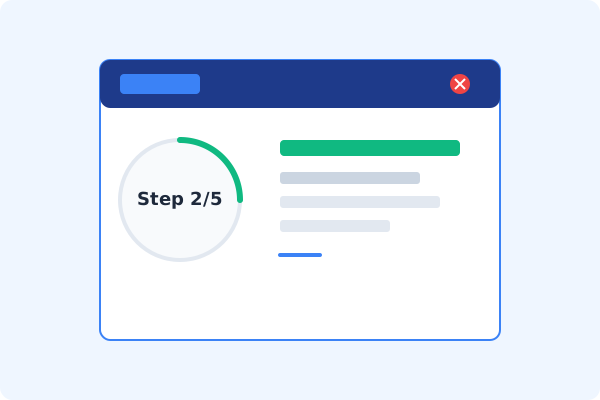
Verify the layout on the live preview screen, click Apply, and press Ctrl+S to save the changes locally.
Why Desktop Offline PDF Processing is Superior
For individuals and corporations, desktop-grade utilities protect your data boundaries while maintaining peak rendering speed:
Fully customize page number positions, formats, and starting indexes
Update or delete existing page numbers and headers in one click
Secure, local desktop processing with zero cloud lag

Offline Local Software vs. Online & Subscription Editors
Before deciding how to handle your document, look at how different solutions stack up against your requirements:
| Features / Risks | Online PDF Editors | Adobe Acrobat | PDF Agile (Offline) |
|---|---|---|---|
| Data Privacy & Safety | ❌ Unsafe (File Uploaded to Cloud) | ⚠️ Average (Cloud Sync Enabled) | ✔ 100% Safe (Processed Locally) |
| File Size & Page Limits | ❌ Strict Limits (Often <20MB) | ✔ Unlimited Pages | ✔ Unlimited Pages (No Cap) |
| Subscription Fees | ⚠️ Free with Ads or Monthly Cap | ❌ Very Expensive ($20+/Month) | ✔ Affordable Lifetime Buyout |
| Offline Performance | ❌ Zero (Requires Internet) | ✔ Slow Setup & Cloud Checks | ✔ Instant Local CPU/GPU Loading |
Contextual PDF Guidelines
Managing complete workflows? Once your layout is numbered, you can create hyperlinks in PDF offline to link your table of contents to specific page numbers, or add watermarks to PDF offline to mark the pages as confidential.
Frequently Asked Questions & Workarounds
Can I skip numbering on the cover page?
Yes. You can exclude the cover page by setting the starting range from page 2 onwards, while starting the count at 1.
How do I delete old page numbers?
In PDF Agile, click Insert > Header & Footer > Delete. The software will detect and remove the existing header/footer layers.
Is this tool fully offline?
Yes, it runs entirely on your local machine, keeping your sensitive corporate documents secure.
Tired of Expensive Adobe Subscriptions?
Try PDF Agile. Get professional, desktop-grade PDF tools with a lifetime buyout license. 100% offline and secure.