How to Compare Two PDF Files Offline
Compare two PDF files side by side offline on desktop to spot visual and text differences instantly — secure PDF Agile.
Checking contracts, financial audits, or technical proposals for unauthorized revisions or small formatting changes is a tedious and risky task. Overlooking a single modified figure can lead to costly legal disputes. This guide covers manual check techniques and explains how to compare two PDF files offline side-by-side using the Document Compare tool in PDF Agile.
Free General Methods to Resolve This Task
Auditing two versions of a contract, proposal, or financial statement for changes is high-stakes work — a single altered figure or deleted clause can have legal or financial consequences. Without a dedicated compare engine you are forced into slow, error-prone manual review. The free methods below help, but none can reliably catch tiny text or spacing edits.
Method 1: Free Manual and Browser Comparison Techniques
If you do not own a professional compare program, you can run a manual review using free operating system features:
- Dual-Window Side-by-Side (Free): Open the original PDF in Microsoft Edge and the revised version in Google Chrome (or two Preview windows on Mac). Snap one window to the left half of the screen (Win + Left Arrow) and the other to the right (Win + Right Arrow), then scroll through page by page. This catches obvious moved images or added paragraphs, but the human eye routinely misses single-character or punctuation changes.
- Text Export + Word Compare (Free): If both PDFs contain selectable text, open each in Microsoft Word (which converts PDF to editable text), then use Word's built-in Review > Compare feature to generate a redline of textual differences. This is surprisingly powerful for text, but conversion can scramble tables and it ignores purely visual or layout changes.
- Overlay Screenshot Method: Take full-page screenshots of both versions and stack them as semi-transparent layers in a free image editor like GIMP. Misaligned pixels reveal layout shifts. This is tedious for multi-page documents and gives no structured change report.
Manual and converted comparisons are slow and unreliable for fine detail. To get pixel-accurate visual and text difference highlighting in one pass, the Document Compare tool in PDF Agile is the professional offline standard.
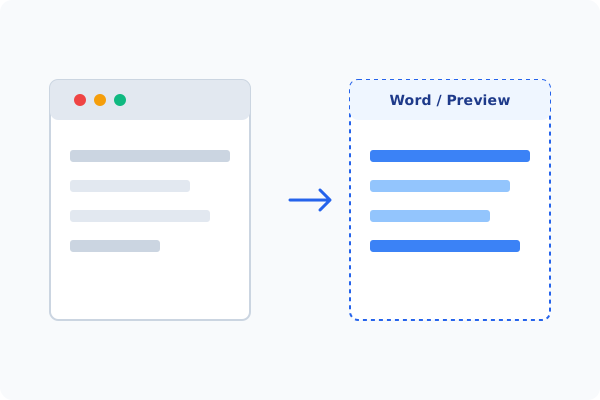
Method 2: How to Process Compare PDFs 100% Offline via PDF Agile
If built-in tools are too manual, convert file layouts, or pose a privacy risk, running a lightweight desktop PDF editor like PDF Agile is the fastest and safest solution on Windows. Follow these steps:
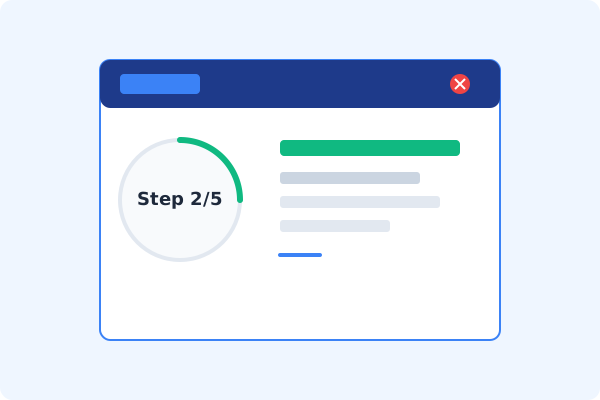
Open PDF Agile and Go to View Tab
Start PDF Agile on your computer and select the View tab on the Ribbon menu.
Click Document Compare
Select the Document Compare button. A comparison wizard window will open.
Load Original and Revised Files
Select your base (Original) document and the new (Revised) document from your local hard drive.
Review Deltas Side-by-Side
The software highlights visual differences, layout shifts, and text modifications in red and green in a side-by-side split pane.
Save the Comparison Report
Review all marked deltas, and export the comparison report locally for your records.
Why Desktop Offline PDF Processing is Superior
For individuals and corporations, desktop-grade utilities protect your data boundaries while maintaining peak rendering speed:
Side-by-side text and visual highlights detect even single-pixel changes
Eliminate human error when auditing legal contracts and financial sheets
100% offline desktop comparison
sensitive drafts are processed locally
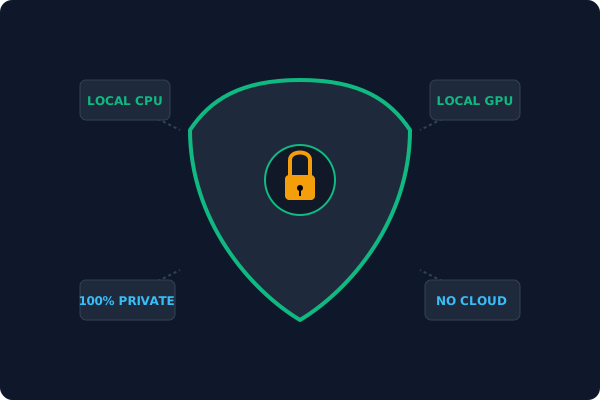
Offline Local Software vs. Online & Subscription Editors
Before deciding how to handle your document, look at how different solutions stack up against your requirements:
| Features / Risks | Online PDF Editors | Adobe Acrobat | PDF Agile (Offline) |
|---|---|---|---|
| Data Privacy & Safety | ❌ Unsafe (File Uploaded to Cloud) | ⚠️ Average (Cloud Sync Enabled) | ✔ 100% Safe (Processed Locally) |
| File Size & Page Limits | ❌ Strict Limits (Often <20MB) | ✔ Unlimited Pages | ✔ Unlimited Pages (No Cap) |
| Subscription Fees | ⚠️ Free with Ads or Monthly Cap | ❌ Very Expensive ($20+/Month) | ✔ Affordable Lifetime Buyout |
| Offline Performance | ❌ Zero (Requires Internet) | ✔ Slow Setup & Cloud Checks | ✔ Instant Local CPU/GPU Loading |
Contextual PDF Guidelines
Managing complete workflows? If you detect unauthorized edits, you can edit PDF text offline to restore the original wording, or redact sensitive text in PDF offline to permanently cover confidential clauses.
Frequently Asked Questions & Workarounds
What is the difference between visual and text compare?
Visual compare overlays pages to highlight layout shifts (like moved images). Text compare analyzes the document stream to highlight spelling, deletion, and addition deltas.
Can I compare scanned PDFs?
Yes. Run OCR on both files first using our specialized tool, and then use Document Compare to audit the recognized text.
Is this tool fully offline?
Yes. The contract compare engine operates locally, ensuring complete confidentiality for corporate deals.
Tired of Expensive Adobe Subscriptions?
Try PDF Agile. Get professional, desktop-grade PDF tools with a lifetime buyout license. 100% offline and secure.