How to Edit Text in PDF Offline Without Losing Formatting
Step-by-step guide to edit text in PDF offline on desktop while keeping the original layout and font intact. 100% secure — PDF Agile.
Editing the actual text inside a PDF — not just adding notes on top — is what most people really need when they search for a PDF editor. The challenge is that PDFs store text with absolute positioning and embedded fonts, so naive edits often break the layout. This guide compares the free built-in workarounds with the font-matching approach of a dedicated desktop editor like PDF Agile.
Free General Methods to Resolve This Task
Method 1: Free Built-in Ways to Change PDF Text
You can modify PDF text for free using tools you likely already have:
- Microsoft Word (Windows & Mac): Open the PDF directly in Word, which converts it to editable text. Edit freely, then save back as PDF. Best for text-heavy documents; complex tables and fonts may shift.
- macOS Preview Cover-and-Overlay (Mac): Preview cannot edit existing text, but you can cover the old text with a white rectangle (use the color picker to match a non-white background) and type new text on top with the Text tool.
- Google Docs (Free, Browser): Upload the PDF to Google Drive, open it with Google Docs to extract editable text, make changes, and download as PDF. Formatting fidelity is limited.
These workarounds either risk layout shifts or only cover text up visually. To edit existing text in place while the editor auto-matches the original font, PDF Agile's offline Edit Content tool is the cleanest solution.
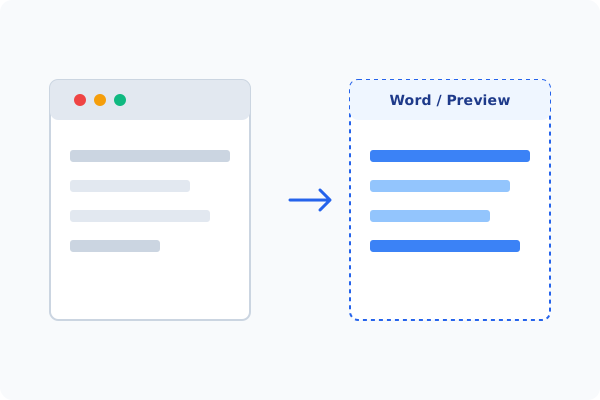
Method 2: How to Process How to Edit Text 100% Offline via PDF Agile
If built-in tools are too manual, convert file layouts, or pose a privacy risk, running a lightweight desktop PDF editor like PDF Agile is the fastest and safest solution on Windows. Follow these steps:
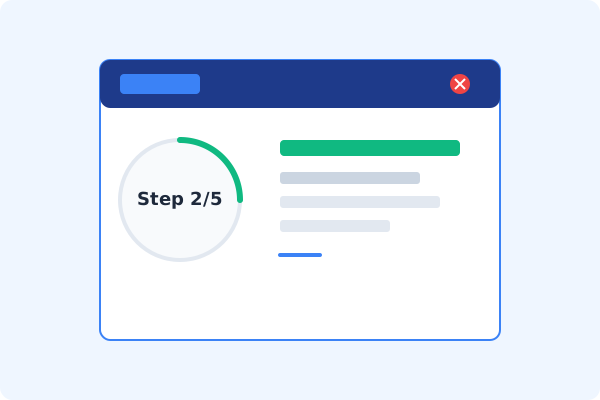
Open PDF Agile & Load the PDF
Launch PDF Agile and open your document. The tool runs offline, protecting your data.
Click the Edit Tab
Select the Edit tab on the Ribbon menu to enter editing mode.
Click Edit Content
Click Edit Content so PDF Agile breaks the page into editable text blocks.
Click into Text and Retype
Click directly in any paragraph to delete, replace, or add text. PDF Agile auto-matches the surrounding font, size, weight, and color.
Save Locally
Press Ctrl+S to save the changes directly to your computer.
Why Desktop Offline PDF Processing is Superior
For individuals and corporations, desktop-grade utilities protect your data boundaries while maintaining peak rendering speed:
Edit existing text in place without retyping the whole document
Automatic font detection keeps text visually identical
Offline processing
ideal for contracts and confidential files

Offline Local Software vs. Online & Subscription Editors
Before deciding how to handle your document, look at how different solutions stack up against your requirements:
| Features / Risks | Online PDF Editors | Adobe Acrobat | PDF Agile (Offline) |
|---|---|---|---|
| Data Privacy & Safety | ❌ Unsafe (File Uploaded to Cloud) | ⚠️ Average (Cloud Sync Enabled) | ✔ 100% Safe (Processed Locally) |
| File Size & Page Limits | ❌ Strict Limits (Often <20MB) | ✔ Unlimited Pages | ✔ Unlimited Pages (No Cap) |
| Subscription Fees | ⚠️ Free with Ads or Monthly Cap | ❌ Very Expensive ($20+/Month) | ✔ Affordable Lifetime Buyout |
| Offline Performance | ❌ Zero (Requires Internet) | ✔ Slow Setup & Cloud Checks | ✔ Instant Local CPU/GPU Loading |
Contextual PDF Guidelines
Managing complete workflows? For documents where preserving the exact typeface is critical, see our detailed guide on how to edit PDF text offline keeping the same font. If your file is a scan, first learn how to convert scanned PDF to text with OCR offline.
Frequently Asked Questions & Workarounds
Can I edit existing text in a PDF, not just add new text?
Yes. PDF Agile's Edit Content tool lets you click into existing paragraphs and edit them directly, unlike Preview which can only overlay new text.
Will the font change when I edit the text?
No. PDF Agile detects and matches the original font metrics locally, so edited text blends seamlessly with the rest of the document.
Can I edit text in a scanned PDF?
Not directly — scanned PDFs are images. Run OCR first to convert the scan into editable text, then edit it.
Tired of Expensive Adobe Subscriptions?
Try PDF Agile. Get professional, desktop-grade PDF tools with a lifetime buyout license. 100% offline and secure.