How to Edit Tables in a PDF Offline
Learn how to edit and extract PDF tables offline with AI cell detection on desktop. Preserve structure and export to Excel — PDF Agile.

Tables in a PDF are notoriously rigid — the data is locked into absolute coordinates with no row or column metadata, so copy-pasting usually scrambles everything. Whether you need to fix a figure, restructure a grid, or export the table to Excel, this guide compares the free manual workarounds with AI-powered table detection in a desktop editor like PDF Agile.
Free General Methods to Resolve This Task
Method 1: Free Manual Table Editing Workarounds
Without dedicated tools, you can attempt table edits using software you already have:
- Microsoft Word Conversion (Free): Open the PDF in Word, which converts tables into editable grids. Edit the cells, then re-export to PDF. Merged cells and complex headers frequently break during conversion.
- Excel From PDF Import (Free): In Excel, use Data > Get Data > From File > From PDF to pull tables into the grid, edit them, and save. Layout fidelity varies by document.
- Copy to Notepad + Text-to-Columns: Copy table text into Notepad, save as a .txt, then import into Excel using Data > From Text/CSV to separate columns.
These manual routes are slow and often scramble structure. To detect, edit, and export PDF tables cleanly, PDF Agile's AI table tools restore the grid automatically.
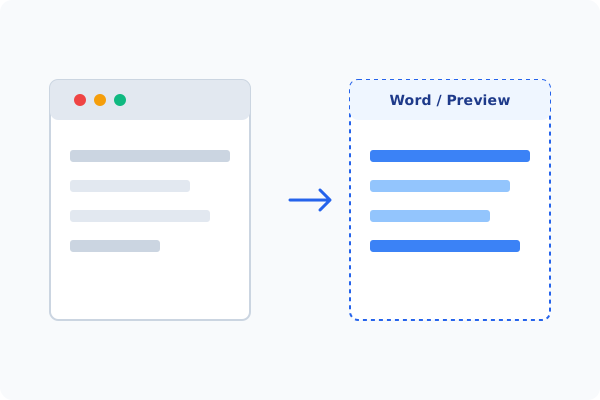
Method 2: How to Process Edit PDF Tables 100% Offline via PDF Agile
If built-in tools are too manual, convert file layouts, or pose a privacy risk, running a lightweight desktop PDF editor like PDF Agile is the fastest and safest solution on Windows. Follow these steps:
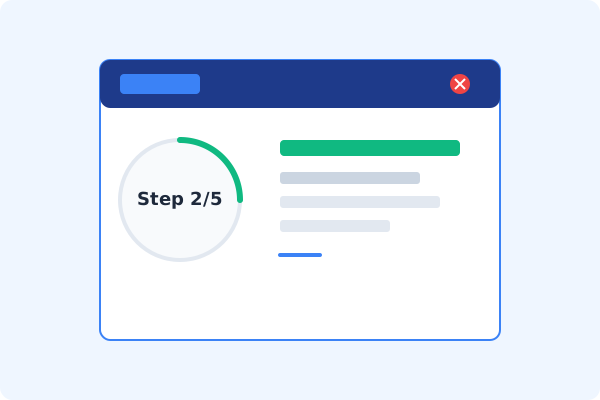
Open PDF Agile & Load Your PDF
Launch PDF Agile and open the document containing the table. Your data stays on your computer.
Go to the View or Convert Tab
Click the View tab to access Extract Table, or the Edit tab to modify text in place.
Run AI Table Detection
Click Extract Table. PDF Agile's built-in AI analyzes and reconstructs the table grid, including merged cells.
Adjust Cells or Export to Excel
Review the detected rows and columns, adjust boundaries if needed, then edit in place or export to a clean .xlsx file.
Save Locally
Save the edited PDF or the exported spreadsheet directly to your drive.
Why Desktop Offline PDF Processing is Superior
For individuals and corporations, desktop-grade utilities protect your data boundaries while maintaining peak rendering speed:
AI table detection preserves merged cells and headers
Export structured tables straight to Excel with no scrambling
Offline processing protects sensitive financial data

Offline Local Software vs. Online & Subscription Editors
Before deciding how to handle your document, look at how different solutions stack up against your requirements:
| Features / Risks | Online PDF Editors | Adobe Acrobat | PDF Agile (Offline) |
|---|---|---|---|
| Data Privacy & Safety | ❌ Unsafe (File Uploaded to Cloud) | ⚠️ Average (Cloud Sync Enabled) | ✔ 100% Safe (Processed Locally) |
| File Size & Page Limits | ❌ Strict Limits (Often <20MB) | ✔ Unlimited Pages | ✔ Unlimited Pages (No Cap) |
| Subscription Fees | ⚠️ Free with Ads or Monthly Cap | ❌ Very Expensive ($20+/Month) | ✔ Affordable Lifetime Buyout |
| Offline Performance | ❌ Zero (Requires Internet) | ✔ Slow Setup & Cloud Checks | ✔ Instant Local CPU/GPU Loading |
Contextual PDF Guidelines
Managing complete workflows? Once your grid is recovered, see how to extract a table from PDF to Excel offline in detail, or how to compare two PDF files offline to verify changes.
Frequently Asked Questions & Workarounds
Why do PDF tables scramble when I copy them?
PDFs store text by coordinates, not rows and columns. Standard copy-paste loses that structure. PDF Agile's AI rebuilds the grid.
Can I edit a table inside a scanned PDF?
Yes, after running OCR to convert the scan to text. Then use Extract Table to recover the structure.
Is my table data uploaded anywhere?
No. The AI table parser runs entirely on your local CPU/GPU within the desktop app.
Tired of Expensive Adobe Subscriptions?
Try PDF Agile. Get professional, desktop-grade PDF tools with a lifetime buyout license. 100% offline and secure.