How to Edit a Protected PDF Offline
Learn how to edit a password-protected or restricted PDF offline on desktop by unlocking permissions securely and locally — PDF Agile.
A protected PDF can block editing, copying, or printing through permission restrictions, which is frustrating when you legitimately own the document and need to make changes. This guide explains the difference between owner and user passwords, the free workarounds available, and how to unlock and edit a protected PDF securely offline with PDF Agile.
Free General Methods to Resolve This Task
Method 1: Free Ways to Handle a Protected PDF
How you proceed depends on the type of protection — and you must have the right to edit the file:
- Enter the Permission Password (Free): If you know the owner/permissions password, most viewers (including macOS Preview and Adobe Reader) will let you enter it to lift editing and printing restrictions, then re-save an unrestricted copy.
- Print to PDF to Strip Restrictions (Free, owner only): If a document allows printing, open it and use Microsoft Print to PDF (Windows) or Save as PDF (Mac) to create a fresh, often unrestricted copy you can then edit.
- Important: Removing protection from a document you do not own or are not authorized to modify may be illegal. Only unlock files you have the right to edit.
For documents you legitimately own, PDF Agile lets you enter the permission password, remove restrictions, and edit the content entirely offline.
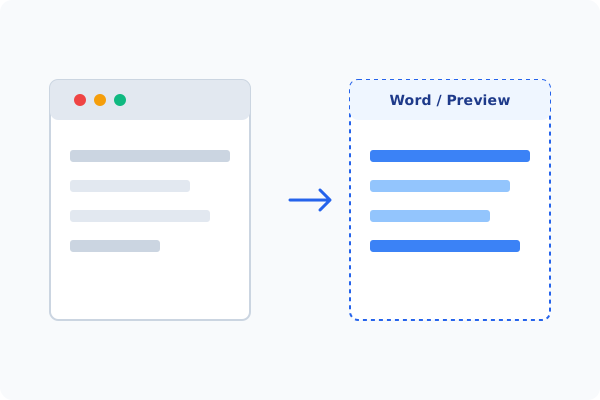
Method 2: How to Process Edit Protected PDF 100% Offline via PDF Agile
If built-in tools are too manual, convert file layouts, or pose a privacy risk, running a lightweight desktop PDF editor like PDF Agile is the fastest and safest solution on Windows. Follow these steps:
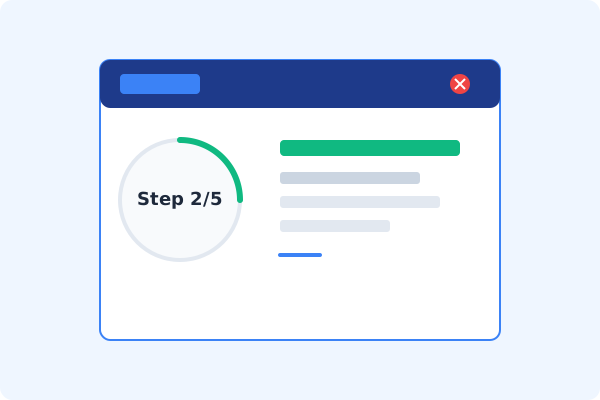
Open PDF Agile & Load the Protected PDF
Launch PDF Agile and open your protected document locally.
Go to the Protect Tab
Click the Protect tab on the Ribbon menu to view security options.
Enter the Permission Password
Click Remove Security and enter the owner/permissions password to lift editing and copying restrictions.
Edit the Now-Unlocked PDF
Switch to the Edit tab and modify text, images, or pages as needed.
Save Locally
Press Ctrl+S to save the edited, unrestricted copy to your computer.
Why Desktop Offline PDF Processing is Superior
For individuals and corporations, desktop-grade utilities protect your data boundaries while maintaining peak rendering speed:
Lift editing and printing restrictions on files you own
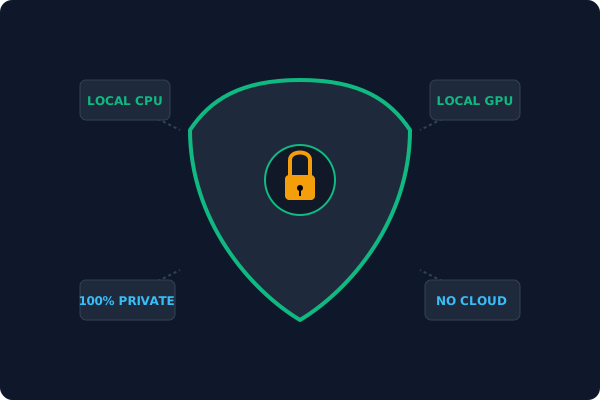
Everything processed locally
passwords never sent to a server
Edit immediately after unlocking in the same desktop app
Offline Local Software vs. Online & Subscription Editors
Before deciding how to handle your document, look at how different solutions stack up against your requirements:
| Features / Risks | Online PDF Editors | Adobe Acrobat | PDF Agile (Offline) |
|---|---|---|---|
| Data Privacy & Safety | ❌ Unsafe (File Uploaded to Cloud) | ⚠️ Average (Cloud Sync Enabled) | ✔ 100% Safe (Processed Locally) |
| File Size & Page Limits | ❌ Strict Limits (Often <20MB) | ✔ Unlimited Pages | ✔ Unlimited Pages (No Cap) |
| Subscription Fees | ⚠️ Free with Ads or Monthly Cap | ❌ Very Expensive ($20+/Month) | ✔ Affordable Lifetime Buyout |
| Offline Performance | ❌ Zero (Requires Internet) | ✔ Slow Setup & Cloud Checks | ✔ Instant Local CPU/GPU Loading |
Contextual PDF Guidelines
Managing complete workflows? Once unlocked, you may want to redact sensitive text in PDF offline before sharing, or learn how to add a digital signature to PDF offline to re-secure the finalized file.
Frequently Asked Questions & Workarounds
Can I edit a password-protected PDF without the password?
If it's a permissions (owner) password and you own the file, some workarounds apply. A user (open) password requires the correct password — there is no legitimate bypass.
Is it legal to remove PDF protection?
Only if you own the document or are authorized to modify it. Removing protection from others' files may violate the law.
Does unlocking happen offline?
Yes. PDF Agile processes the password and restriction removal entirely on your local machine.
Tired of Expensive Adobe Subscriptions?
Try PDF Agile. Get professional, desktop-grade PDF tools with a lifetime buyout license. 100% offline and secure.