How to Measure Distance and Area on PDF Offline
Measure distance, perimeter, and area on PDF drawings offline on desktop. Precise local measurement tool by PDF Agile.
Architects, contractors, and engineers frequently need to pull measurements from floor plans and layout blueprints on-site. If you are handling proprietary designs, web-based tools risk leaking your intellectual property. This guide introduces operating system workarounds and explains how to precisely measure distance, area, and perimeter on PDF offline with the Comment tab in PDF Agile.
Free General Methods to Resolve This Task
Pulling accurate measurements off a PDF blueprint is a daily need for architects, contractors, and estimators, yet standard operating system PDF readers were never built for engineering-grade measurement. The free workarounds below can produce rough numbers, but they require manual math and offer no calibrated scale, so they are error-prone for professional use.
Method 1: Operating System Free Measuring Workarounds
Microsoft Edge and macOS Preview lack a true scale-measuring tool, but you can approximate dimensions for free with these techniques:
- Mac Preview Selection Coordinate Trick (Mac): Open your drawing in Preview and select the rectangular marquee tool. As you drag a box, Preview shows the selection dimensions in pixels. If you know the document DPI (commonly 72, 150, or 300) and the blueprint's printed scale (for example 1:100), you can manually convert pixels to real-world feet or meters. This works but is slow and easy to miscalculate.
- Windows On-Screen Ruler Apps (Free): Windows has no built-in PDF ruler, but free on-screen pixel-ruler utilities let you measure distances on the screen. You then apply the same DPI-and-scale conversion math by hand. Zoom level changes will throw off the result unless you re-measure a known reference each time.
- Print-to-Scale Paper Method: For a no-software option, print the PDF at 100% (no "fit to page") and physically measure with a scale ruler or architect's scale. This is reliable for a single sheet but impractical for large sets of drawings or repeated takeoffs.
Every free method forces you to do conversion math by hand and re-calibrate constantly. To click two points and instantly read calibrated Distance, Perimeter, and Area with CAD-level precision, the dedicated Measure tool in PDF Agile removes the guesswork.
Method 2: How to Process Measure Tool 100% Offline via PDF Agile
If built-in tools are too manual, convert file layouts, or pose a privacy risk, running a lightweight desktop PDF editor like PDF Agile is the fastest and safest solution on Windows. Follow these steps:
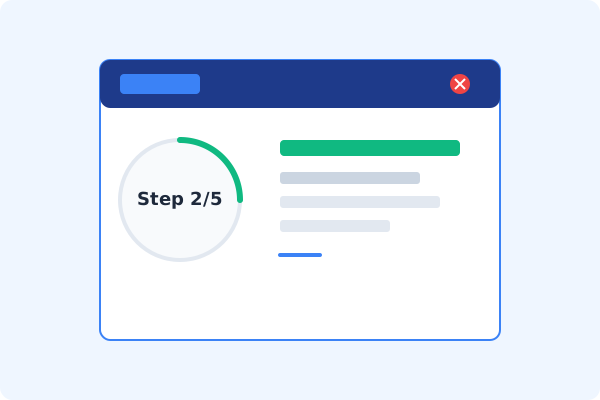
Open PDF Agile & Load Blueprint
Launch PDF Agile on your computer and open your technical diagram or floor plan.
Navigate to the Comment Tab
Click the Comment tab on the Ribbon menu to view layout annotation features.
Select the Measure Tool
Click Measure on the Ribbon. Choose Distance, Perimeter, or Area depending on your needs.
Calibrate the Scale
Click two points with a known distance (like a scale bar), and input the actual physical measurement to calibrate the scale.
Click to Measure and Save
Click any points on the drawing. The calculated distance, perimeter, or area is overlaid as a standard markup. Save with Ctrl+S.
Why Desktop Offline PDF Processing is Superior
For individuals and corporations, desktop-grade utilities protect your data boundaries while maintaining peak rendering speed:
Precisely measure distance, perimeter, and area on engineering drawings
Calibrate custom scales to support feet, inches, meters, or millimeters
100% offline security
prevents proprietary blueprints from leaking

Offline Local Software vs. Online & Subscription Editors
Before deciding how to handle your document, look at how different solutions stack up against your requirements:
| Features / Risks | Online PDF Editors | Adobe Acrobat | PDF Agile (Offline) |
|---|---|---|---|
| Data Privacy & Safety | ❌ Unsafe (File Uploaded to Cloud) | ⚠️ Average (Cloud Sync Enabled) | ✔ 100% Safe (Processed Locally) |
| File Size & Page Limits | ❌ Strict Limits (Often <20MB) | ✔ Unlimited Pages | ✔ Unlimited Pages (No Cap) |
| Subscription Fees | ⚠️ Free with Ads or Monthly Cap | ❌ Very Expensive ($20+/Month) | ✔ Affordable Lifetime Buyout |
| Offline Performance | ❌ Zero (Requires Internet) | ✔ Slow Setup & Cloud Checks | ✔ Instant Local CPU/GPU Loading |
Contextual PDF Guidelines
Managing complete workflows? To edit vector lines or modify original CAD layers, you can convert PDF to CAD offline, or use our markup tools to add shapes to PDF offline to annotate revisions.
Frequently Asked Questions & Workarounds
How do I calibrate a PDF drawing that has no scale bar?
If you know any standard dimension, like a doorway width (typically 3 feet) or a wall length, click the two ends of that object to calibrate your scale.
Will my measurements print with the floor plan?
Yes. PDF Agile writes standard PDF annotations that print perfectly, allowing you to share measured blueprints with field crews.
Does this tool require internet?
No. The scale math and vector snapping are processed entirely locally on your CPU/GPU, fully offline.
Tired of Expensive Adobe Subscriptions?
Try PDF Agile. Get professional, desktop-grade PDF tools with a lifetime buyout license. 100% offline and secure.