How to Convert PDF to Office Files Offline
Batch convert PDF to Word, Excel, PPT, and TXT offline on desktop. Secure local transformation, no upload — PDF Agile.
When a PDF requires major editing or re-purposing, converting it back to Word, Excel, or PowerPoint is the most efficient solution. If you are handling proprietary corporate reports, relying on cloud converters is a major compliance risk. This guide reviews operating system conversion workarounds and details how to convert PDF to Office offline in batch with PDF Agile.
Free General Methods to Resolve This Task
Method 1: Windows & macOS Free Office Conversion Workarounds
You can convert PDF to Office formats for free using native apps or word processors you already have:
- Microsoft Word Import (Windows & Mac): Open Microsoft Word. Go to File > Open and select your PDF. Word will automatically convert the file into an editable Word document. This is highly effective for text-heavy documents, but complex tables, headers, and image placements frequently break or shift.
- Excel Data Import: In Microsoft Excel, click the Data tab, select Get Data > From File > From PDF. Select your PDF file. Excel will analyze the document and let you select individual tables to load into the grid.
For high-fidelity, offline batch conversions of Word, Excel, and PPT files with formatting fully preserved, use the specialized Convert tab in PDF Agile.
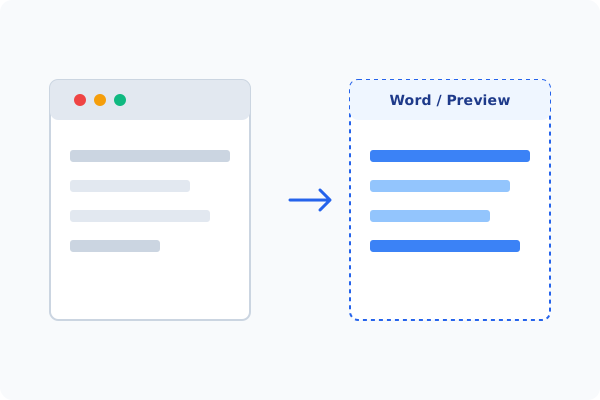
Method 2: How to Process PDF to Office 100% Offline via PDF Agile
If built-in tools are too manual, convert file layouts, or pose a privacy risk, running a lightweight desktop PDF editor like PDF Agile is the fastest and safest solution on Windows. Follow these steps:
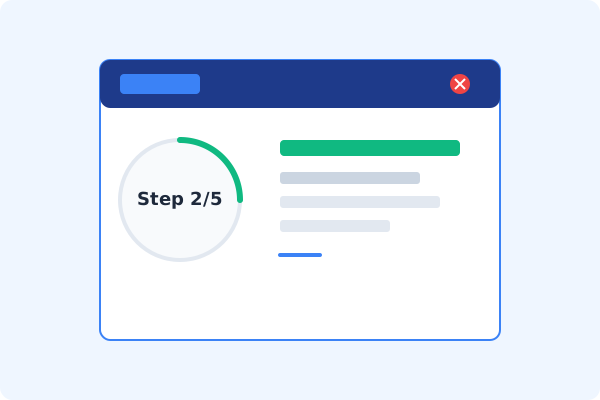
Open PDF Agile & Load PDF
Launch PDF Agile on your Windows desktop. All conversions are processed locally on your device.
Select the Convert Tab
Click the Convert tab on the top Ribbon menu to view conversion options.
Select PDF to Word, Excel, or PPT
Choose your target Office format (e.g., PDF to Word, PDF to Excel, or PDF to PPT).
Add Files for Batch Conversion
Drag and drop multiple PDFs into the conversion queue to process them in a single secure batch.
Export to Selected Folder
Select your output folder and click Convert. The high-quality Office files are saved locally on your drive.
Why Desktop Offline PDF Processing is Superior
For individuals and corporations, desktop-grade utilities protect your data boundaries while maintaining peak rendering speed:
Batch convert PDF to Word, Excel, PPT, and TXT with a single click
High-fidelity layout retention keeps styles, images, and tables aligned
100% offline desktop processing
maximum data safety for corporate documents
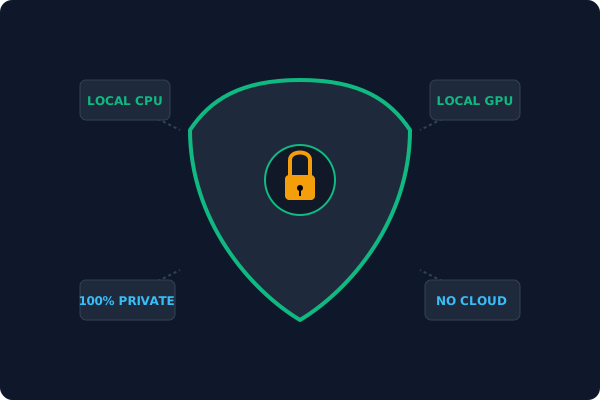
Offline Local Software vs. Online & Subscription Editors
Before deciding how to handle your document, look at how different solutions stack up against your requirements:
| Features / Risks | Online PDF Editors | Adobe Acrobat | PDF Agile (Offline) |
|---|---|---|---|
| Data Privacy & Safety | ❌ Unsafe (File Uploaded to Cloud) | ⚠️ Average (Cloud Sync Enabled) | ✔ 100% Safe (Processed Locally) |
| File Size & Page Limits | ❌ Strict Limits (Often <20MB) | ✔ Unlimited Pages | ✔ Unlimited Pages (No Cap) |
| Subscription Fees | ⚠️ Free with Ads or Monthly Cap | ❌ Very Expensive ($20+/Month) | ✔ Affordable Lifetime Buyout |
| Offline Performance | ❌ Zero (Requires Internet) | ✔ Slow Setup & Cloud Checks | ✔ Instant Local CPU/GPU Loading |
Contextual PDF Guidelines
Managing complete workflows? To convert drawing blueprints instead of text reports, you can convert PDF to CAD offline, or use our OCR utility to convert scanned PDF to text with OCR offline.
Frequently Asked Questions & Workarounds
Will my original document's layout shift after conversion?
While standard converters often scramble elements, PDF Agile preserves columns, tables, and styles locally, keeping formatting intact.
Can I convert scanned PDFs to Word offline?
Yes. If the PDF is a scanned image, PDF Agile automatically activates its built-in OCR engine to extract and convert the text.
Is there a file size or page limit?
No. Unlike online converters that restrict page count or charge fees, our desktop app handles large books and documents completely free of limit.
Tired of Expensive Adobe Subscriptions?
Try PDF Agile. Get professional, desktop-grade PDF tools with a lifetime buyout license. 100% offline and secure.